
Have you ever felt totally annoyed because your computer takes ages to boot up? I know the feeling all too well! 😊 A few months ago, my trusty laptop started freezing whenever I opened more than two tabs, and it was really bad. I thought I might need to buy a whole new machine. But then, I stumbled upon a much simpler solution.
Today, I want to talk about Apocleaner, a fantastic digital hygiene tool. To be honest, I was a bit skeptical at first, but the results were amazing. Let’s dive into how it can transform your digital workspace!
What Exactly is Apocleaner? 🤔
Simply put, Apocleaner is a specialized software application designed to deeply scan your operating system and remove hidden junk files, leftover application data, and unnecessary cache files. When we normally delete an app, it often leaves behind hidden preference files and folders. Over time, this “digital clutter” piles up.
Did you know that leftover files can consume up to 15% of your hard drive space? Regularly running a deep clean can significantly extend the lifespan of your storage drive!
Why You Absolutely Need It 📊
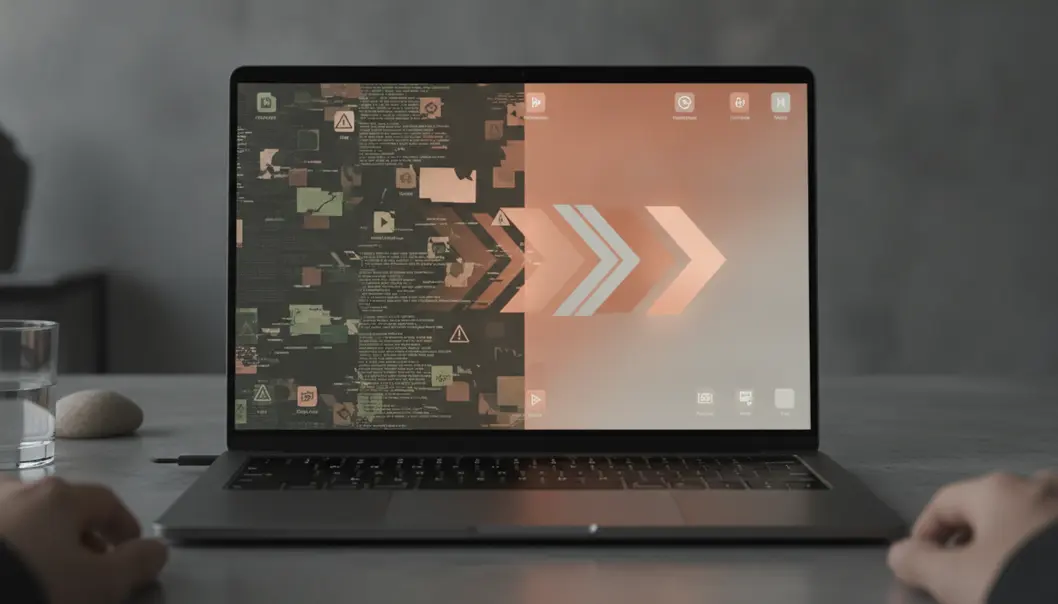
You might be wondering, “Is it really necessary?” I think it definitely is. Let me show you a quick comparison of a system before and after using Apocleaner.
| Performance Metric | Before Apocleaner | After Apocleaner |
|---|---|---|
| Boot Time | Over 2 minutes | Under 30 seconds |
| Available Storage | Critically Low (<5GB) | Healthy (>45GB freed) |
| App Launch Speed | Sluggish, lots of bouncing | Instantaneous |
As you can see, the difference is night and day! If your machine feels sluggish, this might just be the lifesaver you need.
Step-by-Step Guide to Using Apocleaner 🧮
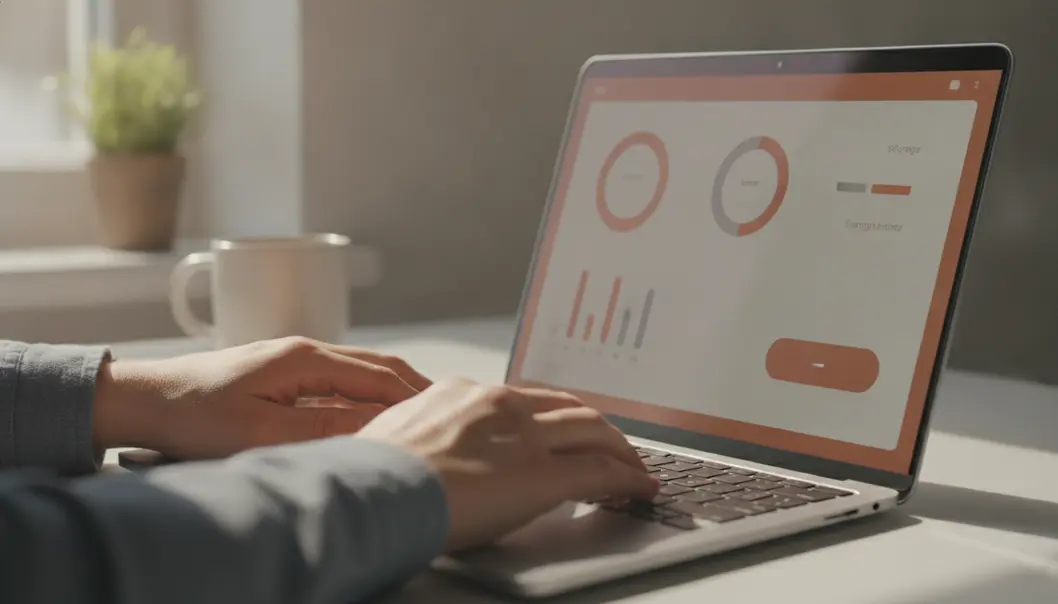
Now that we know the benefits, how do we actually use it? Don’t worry, it’s incredibly user-friendly. Here is how I usually run my weekly cleanup:
- Download and Install: Make sure you get the official version from the verified website.
- Launch the App: Open Apocleaner. You’ll be greeted by a simple, intuitive dashboard.
- Select Scan Mode: Choose between a Quick Scan or a Deep Clean. I recommend Deep Clean for your first time!
- Review the Results: The tool will display all the junk files it found. Carefully review the list.
- Hit Clean: Once you’re confident, click the clean button and watch the magic happen.
Always double-check what is being deleted! Sometimes, cache files for frequently used apps like video editors might be useful for rendering speeds. Don’t blindly delete everything if you aren’t sure.
Calculate Your Potential Savings 🔢
Curious about how much space you could save? I built this handy little interactive calculator for you! Just enter the number of apps you plan to uninstall or clean up.
🔢 Storage Savings Calculator
Pretty cool, isn’t it? Just an average cleaning session can recover gigabytes of precious storage.
Advanced Pro Tips & Real-Life Case 👩💼👨💻
If you are a power user, Apocleaner has some hidden gems. For instance, the ‘plugin sweeper’ feature hunts down forgotten browser extensions that are secretly draining your RAM. I think it’s one of the most underrated features!
📝 Real-Life Case Study
The Situation: A freelance graphic designer friend was down to her last 2GB of SSD space.
The Action: We ran Apocleaner, targeting specifically old Adobe cache files and unfinished project temp files.
The Result: We recovered an astonishing 68GB of space in just under 10 minutes! She didn’t even have to delete any active projects.
📝 Conclusion: Key Takeaways
Let’s quickly wrap up what we’ve learned today. Maintaining your digital workspace is just as important as cleaning your physical desk.
- Regular maintenance is key: Don’t wait until your computer crashes.
- Look beyond the trash bin: Emptying the recycle bin isn’t enough; hidden caches take up massive space.
- Use reliable tools: Apocleaner provides a safe, efficient way to manage system clutter.
💡 Apocleaner Master Summary
FAQ ❓
Thank you so much for reading through this guide! I really hope Apocleaner helps you breathe new life into your device. If you have any more questions or want to share your own cleaning success stories, feel free to ask in the comments! 😊